Getting on the road.
Whether a fleet invited you or you're joining on your own — how to sign up, get approved, and start taking trips.
Joining with an invitation.
If a company invited you to their fleet, they sent you a link by email — and by text, if they had your mobile number. Opening it shows your invite code. You don't need an account yet; you create one as part of accepting.
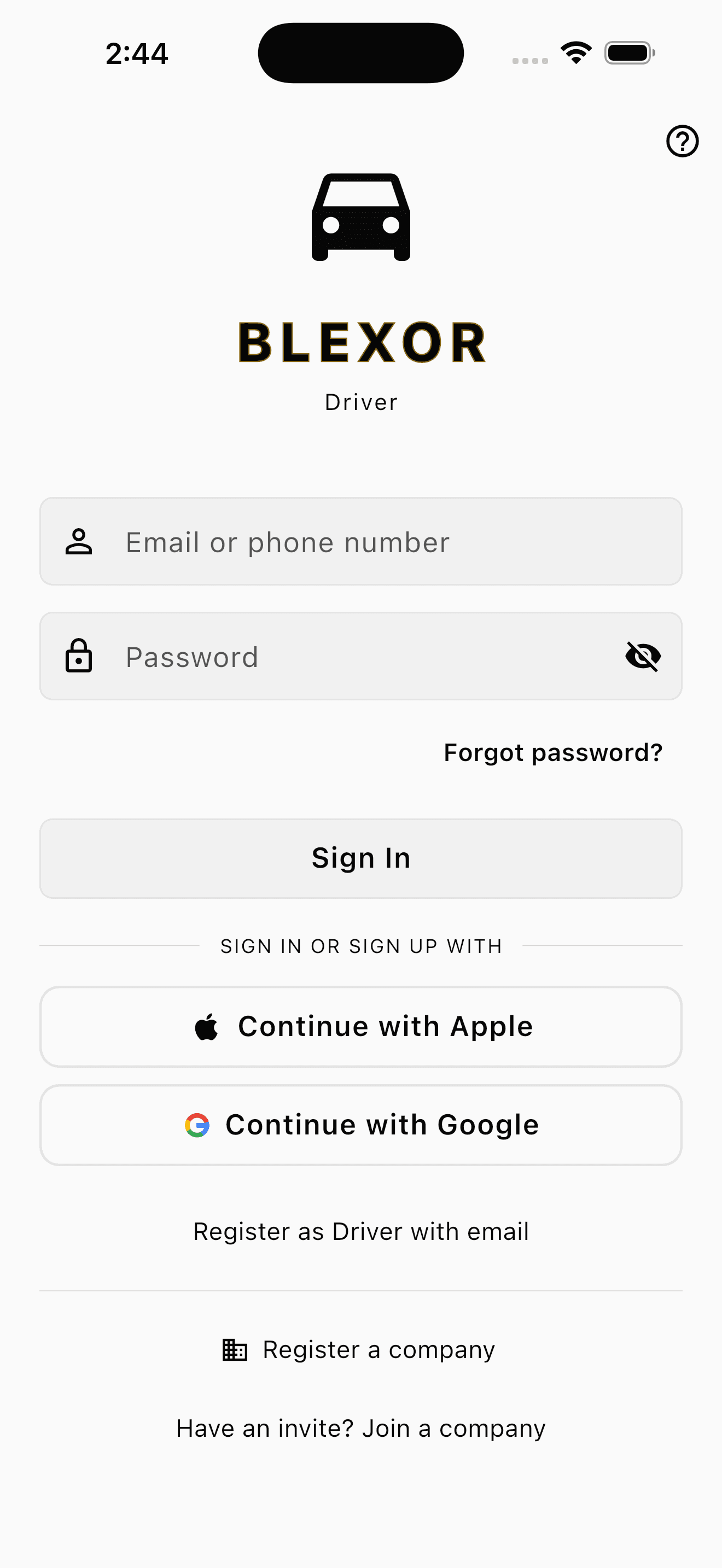
- 1Install the Blexor Driver app and open it.
- 2Tap “Have an invite? Join a company” — it's at the bottom of the sign-in screen, below “Register as Driver with email”.
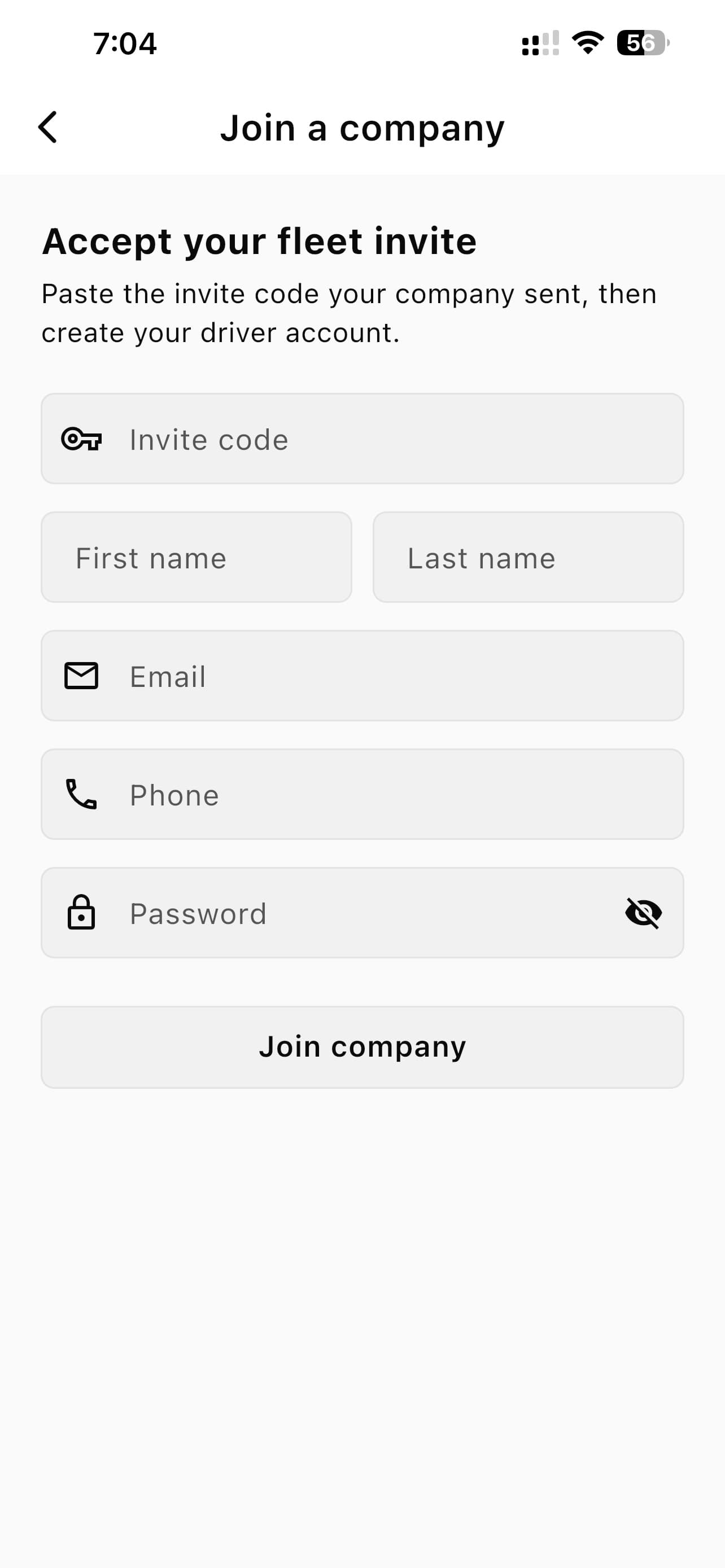
- 1Paste the invite code from your link into the top field.
- 2Fill in your name, email, phone and a password. This creates your driver account — you don't need to have registered beforehand.
- 3Tap Join company. You're on the fleet's roster straight away, and signed in.
If the link doesn't work
The page will tell you which it is — the invite was already used, withdrawn by the company, expired after 14 days, or the link is malformed. All four are fixed the same way: ask the company to send a new invite. You can also type the code by hand in the app if the link itself won't open.
Joining on your own.
No invitation? Install the Blexor Driver app and tap Register as Driver with email, or continue with Apple or Google. You'll drive your own vehicle and upload its registration yourself. You can always join a fleet later — an invite works on an account you already have.
Before you can go online.
We review what you upload, usually within a day or two. The same standard applies wherever you drive — you're carrying members of the public, and that bar doesn't move by state.
A profile photo
Tap your picture on the Profile tab to add one. A rider is getting into a stranger's car; they're entitled to see who's driving.
Your vehicle registration
Approved and unexpired, for the vehicle you've selected. Upload it under Settings → Documents and we review it.
An operating state
We assign this from your registration during review. Until it's set you can't go online anywhere, and you can only go online inside that state.
Your driver's licence
Front and back, both approved. The name on it has to match your account name.
Commercial insurance
Current, approved, and covering carrying passengers for hire. A personal or ordinary business-use policy does not — check the use class on your declarations page.
Step by step
Everything starts from the Profile tab, bottom right of the app. Add your vehicle first — your registration and insurance attach to it, so there is nowhere to put them until it exists.
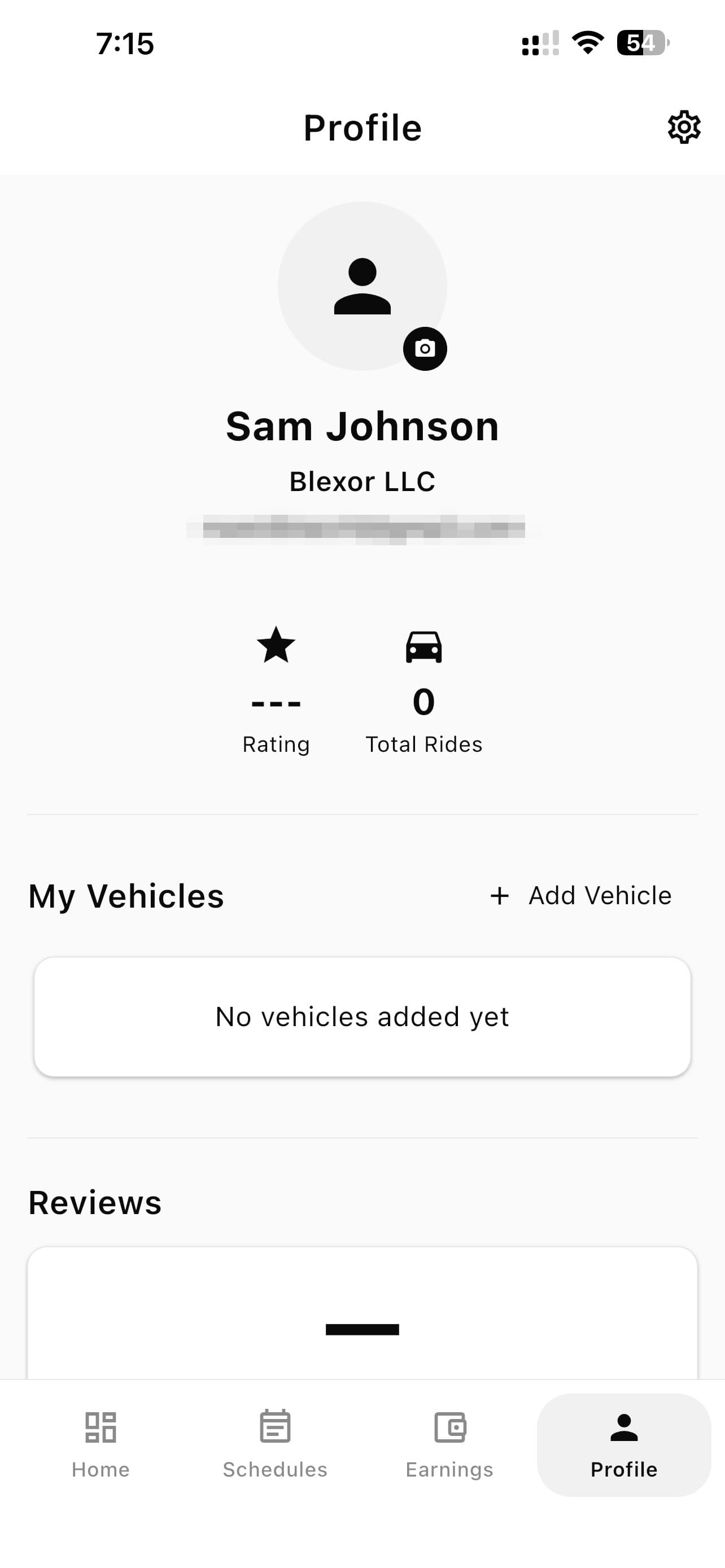
- 1Tap the camera badge on your picture to add a profile photo — take one or pick from your library. This one lives here, not under Settings.
- 2Tap Add Vehicle to register the car you'll drive. Fleet drivers can skip this: your company assigns you one of theirs.
- 3The gear icon, top right, opens Settings. That's where Documents lives — your licence, insurance and vehicle registration all get uploaded from there. Steps 3 and 4 below walk through it.
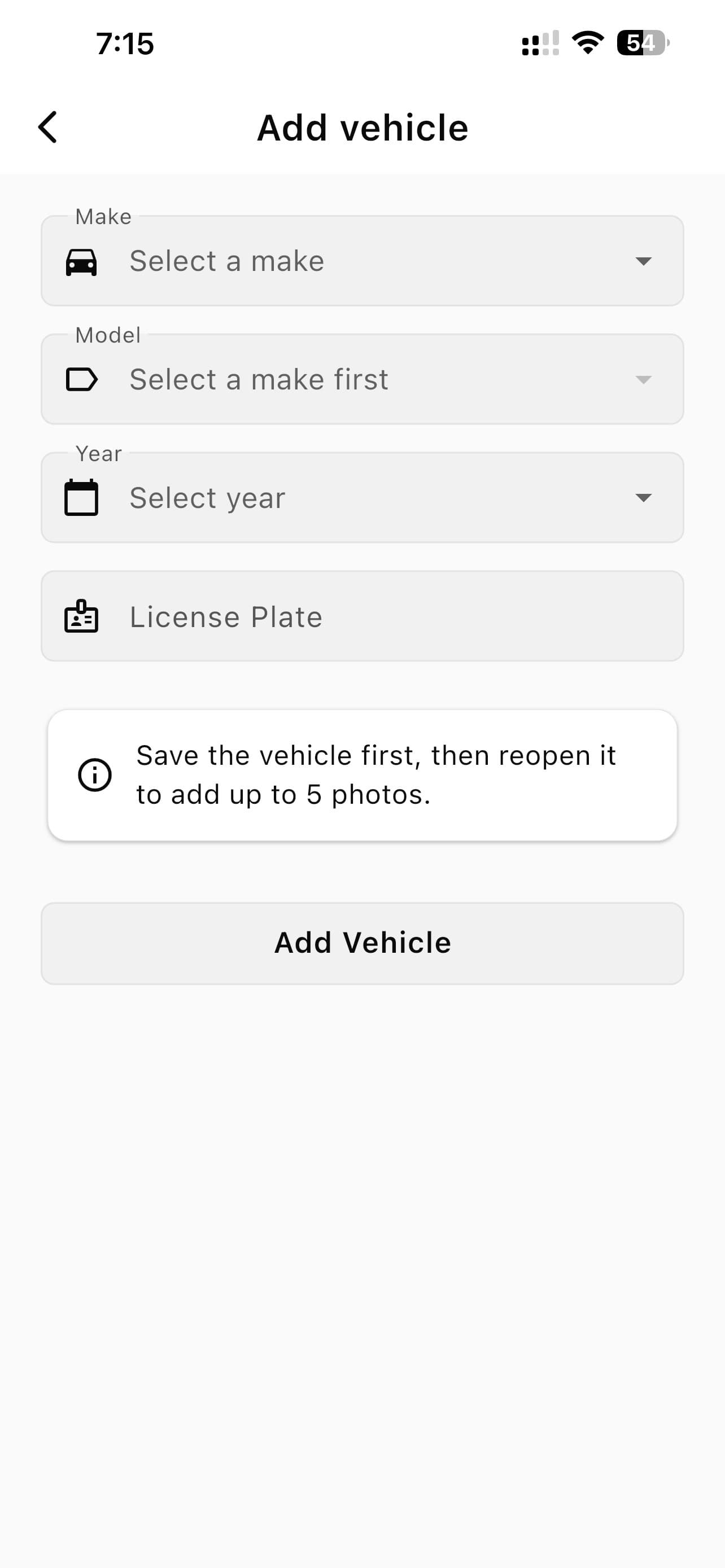
- 1Make, model, year and licence plate, then Add Vehicle. Photos of the car come after — save it first, reopen it, and you can add up to five.
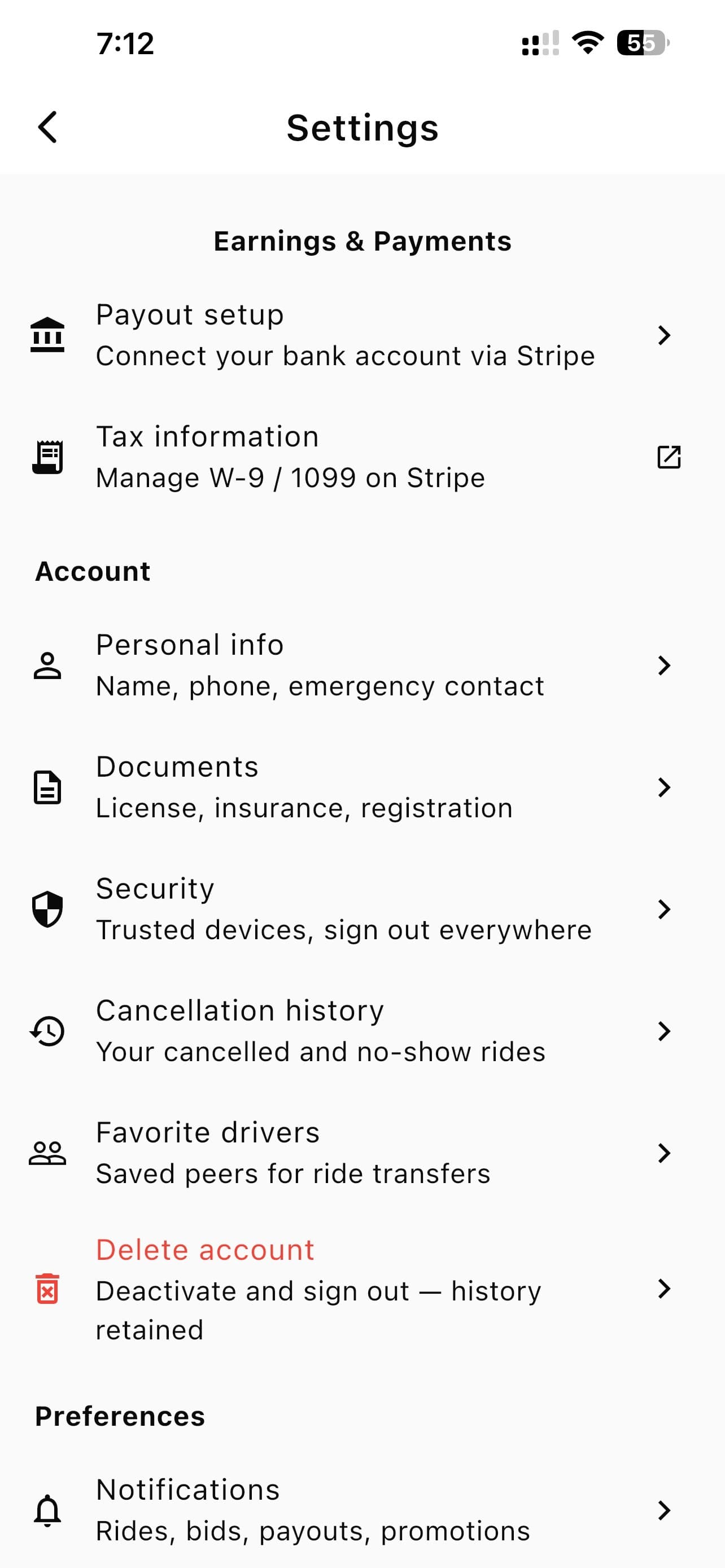
- 1Open Settings from the gear icon on the Profile tab, then tap Documents. Your licence, insurance and vehicle registration all live behind this one row.
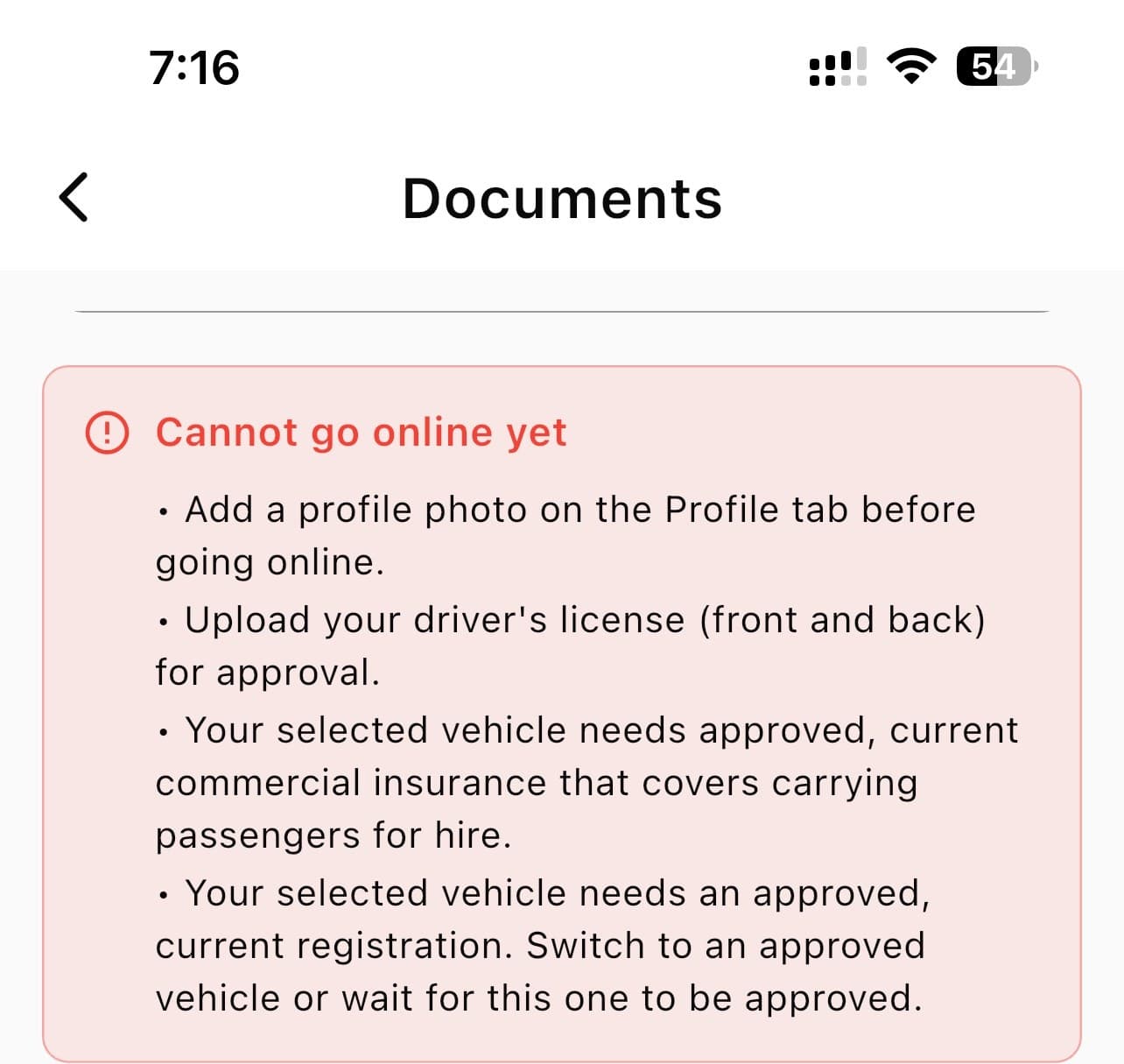
- 1Anything still standing between you and going online is spelled out here in plain words — a missing profile photo, a licence not yet approved, insurance that doesn't cover passengers for hire. Work down the list and it empties.
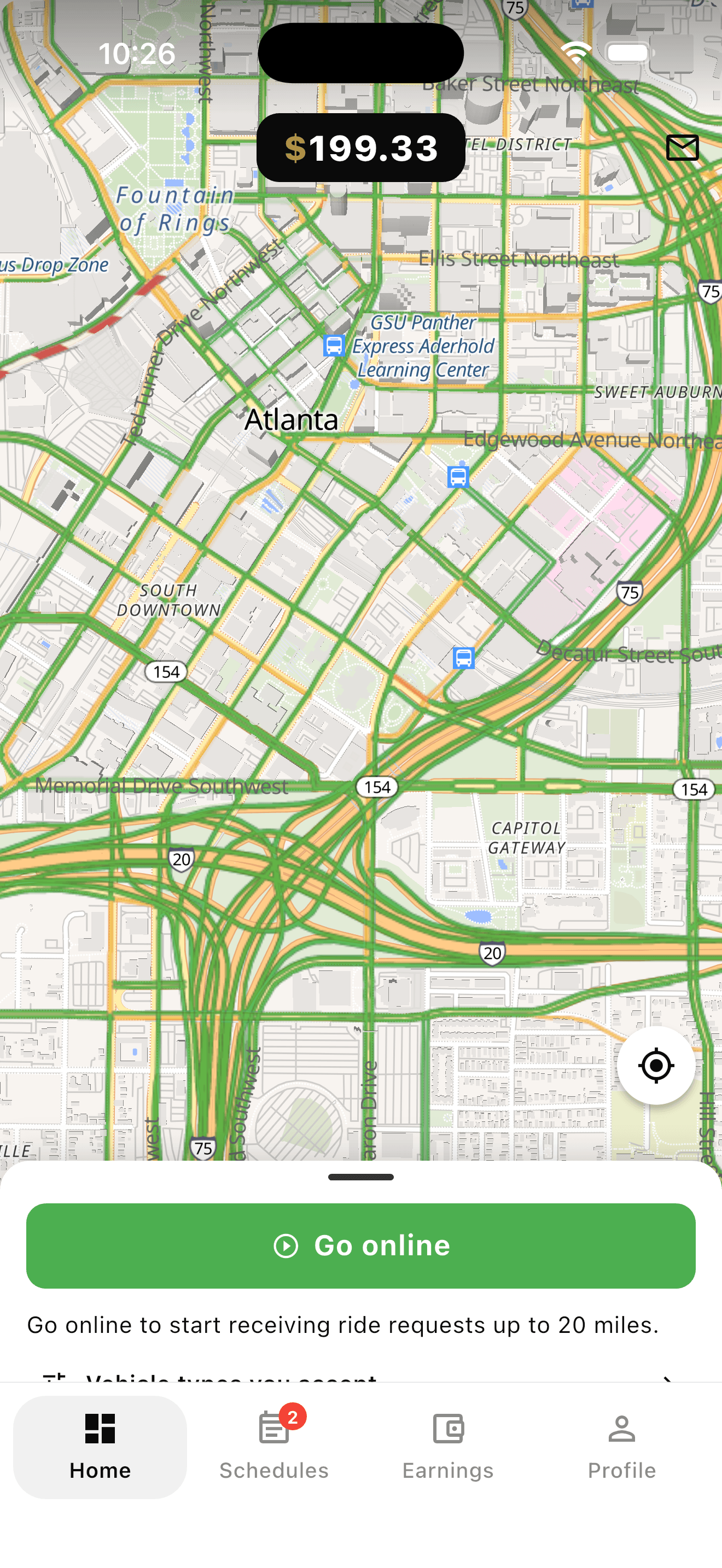
- 1Once you're approved, tap Go online on the home screen. Ride requests start arriving, and you'll get them as notifications even with the app in the background.
How work reaches you.
Instant requests
Nearby trips are offered to one driver at a time. First to accept gets it, so a quick answer matters. These arrive while you're online.
Scheduled trips
Booked in advance and open to bidding. Bid what you want to earn — our fee is added on top for the rider, so a $100 bid pays you $100. Bidding closes 25 minutes before pickup.
You don't need a payout account set up to start driving. Earnings are held until you finish Stripe onboarding, then released — so an approval delay never costs you work. See pricing for the fee.
Taking a scheduled trip.
Scheduled work doesn't arrive as a ping you race to answer. You find it, you price it, and if the rider picks you it's yours — often days ahead.
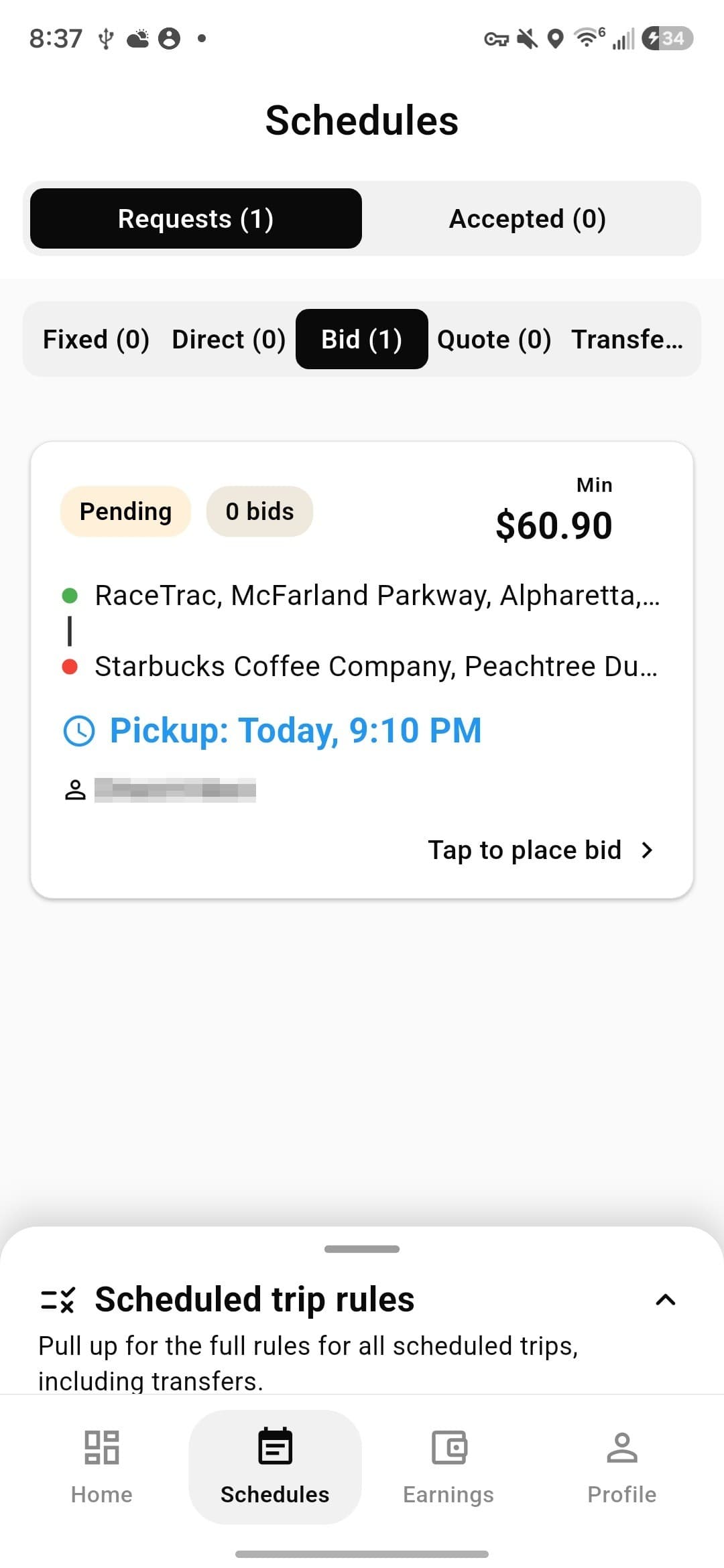
- 1Open Schedules → Requests. Trips are grouped by how the rider chose to book: Fixed, Direct, Bid, Quote and Transfer. The number beside each tells you what's waiting.
- 2Each card shows the route, the pickup time and the minimum — what the rider's recommended price works out to for you. Tap it to bid.
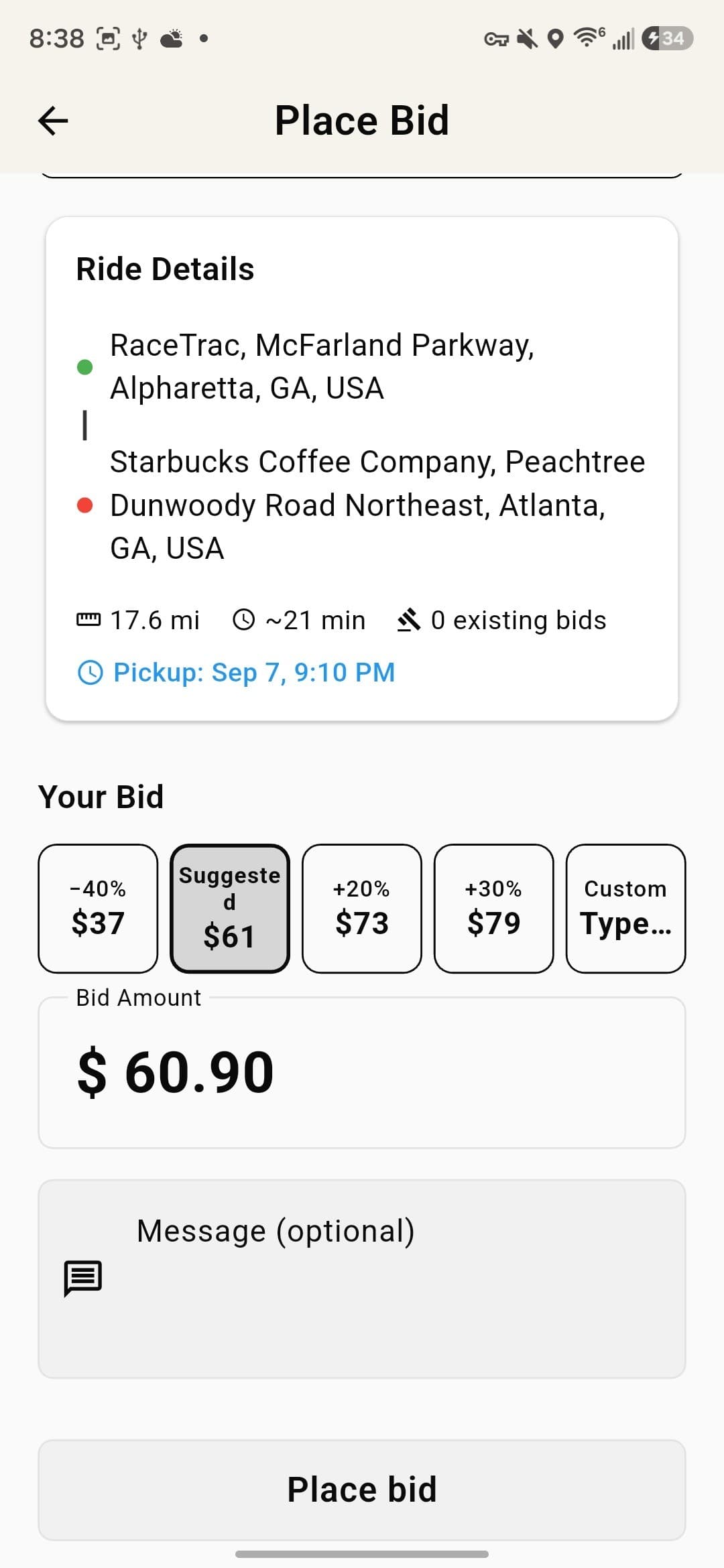
- 1You can see the distance, the duration and how many drivers have already bid — so you know whether you're first or fifth.
- 2Bid what you want to earn. The presets run from −40% to +30% of the suggested price; you can also type your own. Our fee is added on top for the rider, so your number is what you're paid. There's no ceiling, but the rider sees every offer side by side.
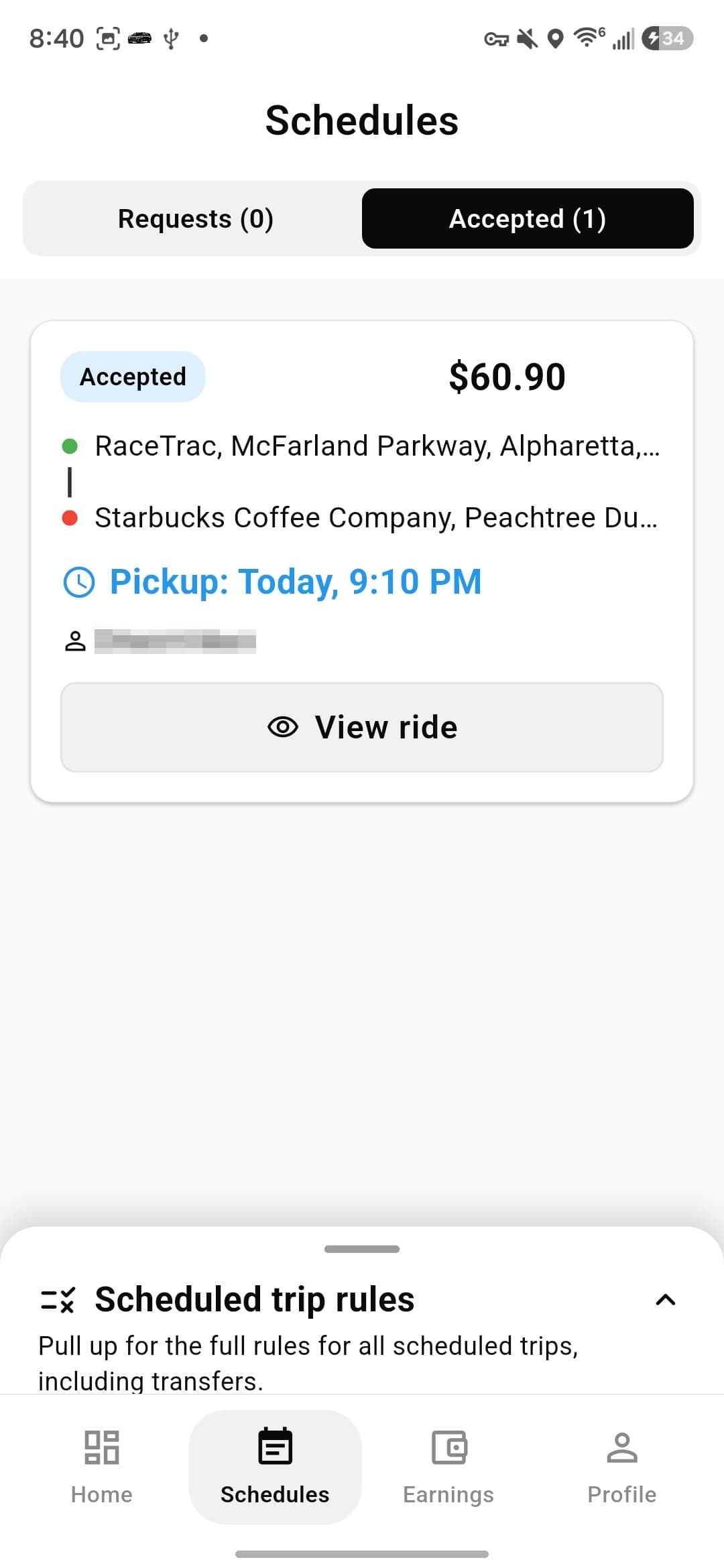
- 1If the rider takes your bid, the trip moves to the Accepted tab with your fare on it. Nothing else is needed from you until the day — but the trip is now a commitment, and cancelling late costs you.
What happens, and when.
Once a scheduled trip is yours, the app does the remembering. Here is every nudge and step, in the order they come.
- 45 minutes before pickup
A nudge to go online
Only if you aren't online already. It's sent once — toggling offline again won't produce a second one. You need to be online to be dispatched.
- About half an hour before you need to leave
Heads-up
A first alert so you can finish what you're doing. It lands 15 minutes before the one that actually tells you to set off.
- When it's time to drive
Navigate now
Timed off your live location: it fires when only your travel time plus a 15-minute cushion is left, so following it puts you at the pickup about 15 minutes early rather than exactly on time.
- You set off
On the way
Tapping this tells the rider their driver is on the way and starts sharing your position with them, so they can watch the car approach.
- You get there
I've arrived
Notifies the rider and puts a banner on their screen. It's a separate step from starting the trip because drivers usually arrive a minute or two before the passenger gets in — and it's what starts the wait-time clock.
- If they keep you waiting
Wait time
Five minutes are free. After that it accrues at $1 a minute, capped at $10, and is added to the fare automatically. You don't have to do anything to claim it.
- Passenger in the car
Start the ride
The rider gives you a PIN, spoken out loud — you enter it to start. It confirms you have the right passenger. Never ask for it any other way.
- At the destination
Complete
Ends the trip and settles the fare, including any wait time. Your earnings appear straight away; when they reach your bank depends on your payout setup.
Common questions.
I got an invite from a company. What do I do?
+
I got an invite from a company. What do I do?
+Open the link they sent you. It shows an invite code. Then install the Blexor Driver app, tap “Have an invite? Join a company” on the sign-in screen, and enter that code — you'll create your driver account as part of the same flow. You end up on their roster automatically.
My invite link says it's expired.
+
My invite link says it's expired.
+Fleet invites are valid for 14 days. Ask the company to send a new one — it takes them a few seconds.
It says the invite has already been used.
+
It says the invite has already been used.
+Someone has already accepted it. If that wasn't you, tell the company and ask for a fresh invite.
I already have a Blexor driver account. Can I still join a fleet?
+
I already have a Blexor driver account. Can I still join a fleet?
+Yes, but not from the app just yet — entering the code will tell you the email is already registered. Don't create a second account. Email [email protected] from your account address, tell us which company invited you, and we'll add you to their roster.
Do I need my own car to join a fleet?
+
Do I need my own car to join a fleet?
+No. Fleet drivers are assigned a company vehicle by the owner. Independent drivers use their own vehicle and upload its registration themselves.
I've uploaded everything but I still can't go online.
+
I've uploaded everything but I still can't go online.
+The most common cause is that we haven't assigned your operating state yet — that's set during review, from your vehicle registration. You also need an approved licence and commercial insurance covering passengers for hire. If everything is approved and you're still blocked, email [email protected].
Why do I only get ride requests in one state?
+
Why do I only get ride requests in one state?
+Each driver is approved to operate in one state. You can drive across a state line to finish a trip you've already accepted — that's expected and allowed — but you can't take new work outside your approved state.
Do I need to set up payouts before I can drive?
+
Do I need to set up payouts before I can drive?
+No. You can accept and complete trips first and connect your payout account afterwards — your earnings are held until you do. You just can't be paid until Stripe onboarding is finished.
How do scheduled trips work?
+
How do scheduled trips work?
+They're posted in advance and you bid on them. Bid what you want to earn — our fee is added on top for the rider, not taken out of your bid, so a $100 bid pays you $100. Bidding closes 25 minutes before pickup, and the rider can accept at any point before that.
Can I keep my personal number private?
+
Can I keep my personal number private?
+Yes. Calls and messages with riders go through the app, so neither side sees the other's number.
Still stuck?
Support chat is built into the Blexor Driver app and reaches us with your account already identified — faster than email. Otherwise write to [email protected].