Running a fleet.
Register your company, put your vehicles and drivers on the roster, then bid for scheduled trips. Here's the whole thing, start to finish.
Getting set up.
Four things have to be in place before scheduled rides are offered to your fleet. The app shows the same checklist on your Rides screen, and it disappears once you're ready.
- 1
Register your company
Company name, your name, email, phone and business address. You'll set a password at the same time — that account is the fleet owner login.
- 2
Wait for approval
We review every company before it can take work. Until that clears, the app shows your fleet as pending and no rides are offered.
- 3
Add a vehicle and its registration
You need at least one active vehicle with an approved registration. Upload the registration when you add the vehicle.
- 4
Invite at least one driver
Drivers join by invitation — see below. Your roster needs at least one driver before scheduled rides open up.
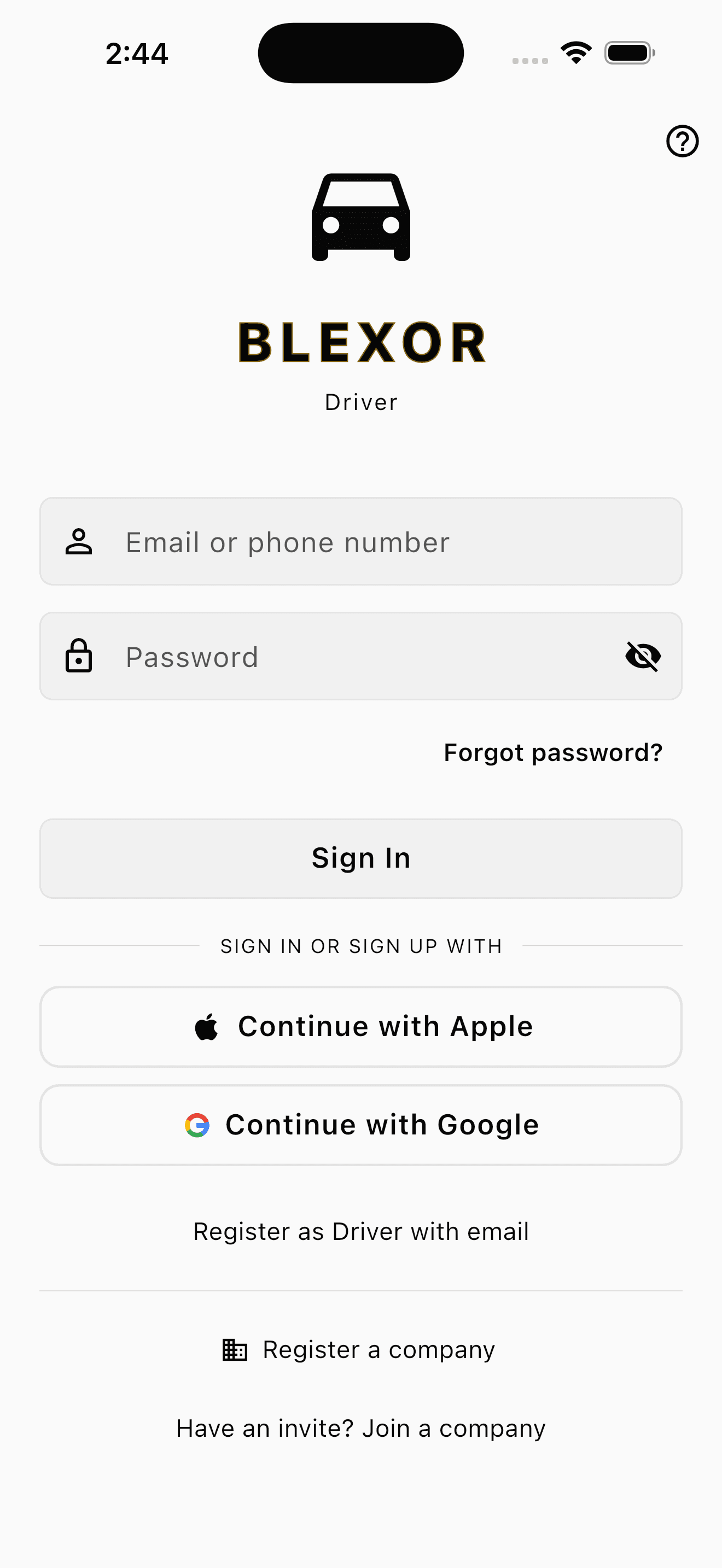
- 1You start here. Download the Blexor Driver app and tap “Register a company” — that creates your fleet and your owner login in one go.
- 2Your drivers use the same app, but take the other door: “Have an invite? Join a company”, using the link you send them.
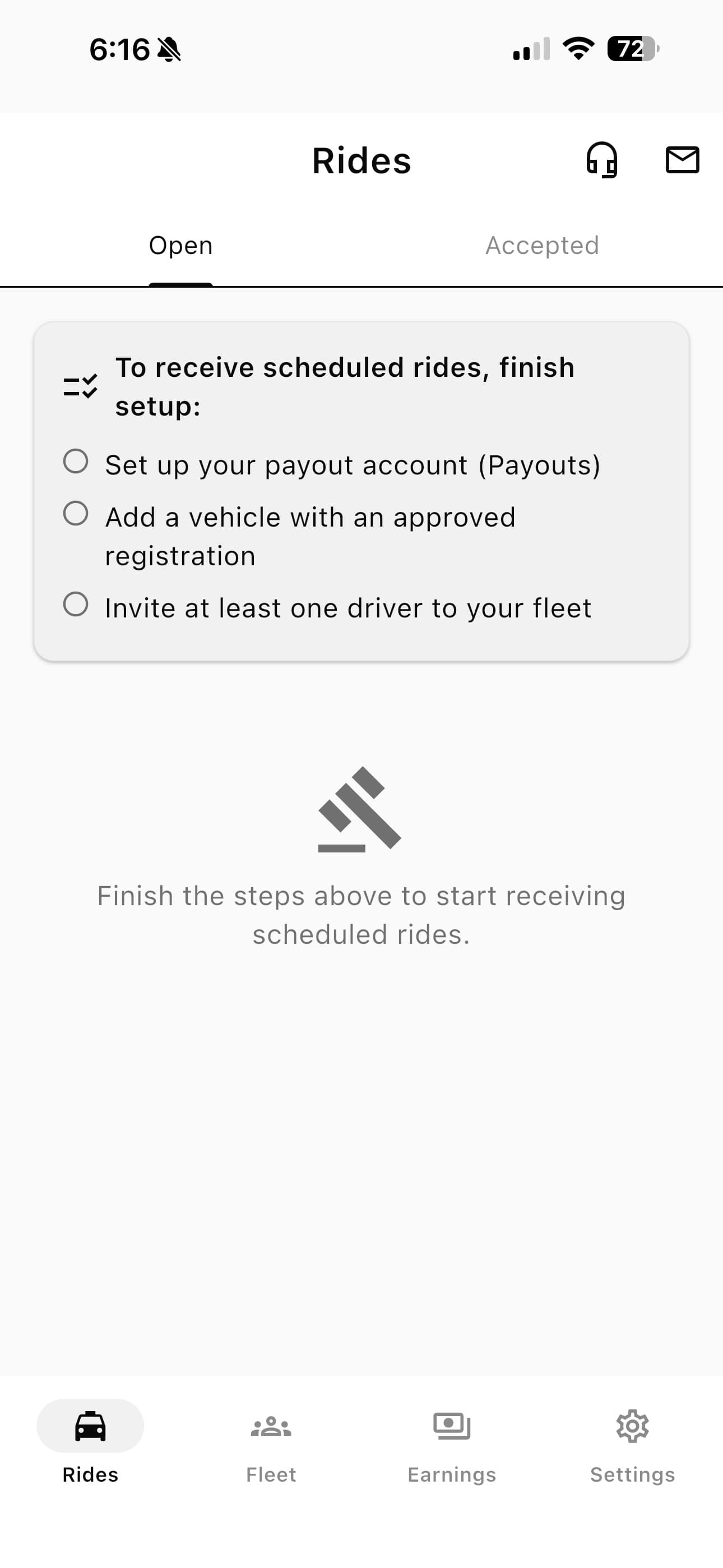
- 1The same checklist appears on your Rides screen. It only lists what's still outstanding — the company above has already been approved, so approval has dropped off and three steps remain. When the card disappears entirely, you're ready to bid.
If you're paying drivers directly rather than through the company, you can skip setting up a company payout account — see Getting paid below.
Adding vehicles and their documents.
Your vehicles live under Fleet → Vehicles. Add the car first, then upload its papers — they attach to that vehicle, so there is nowhere to put them until it exists.
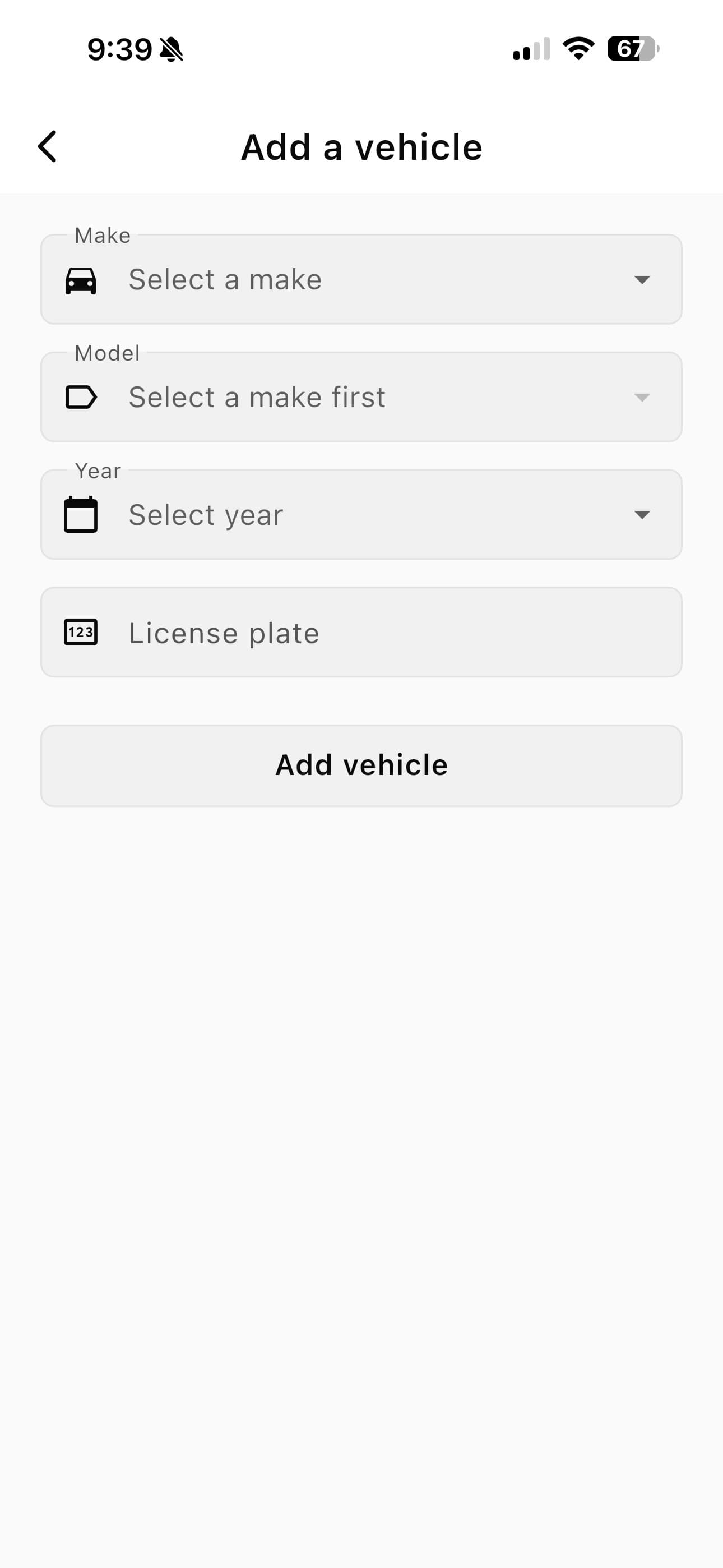
- 1Make, model and year come from a list; the licence plate you type. Tap Add vehicle and it appears on your Vehicles tab.
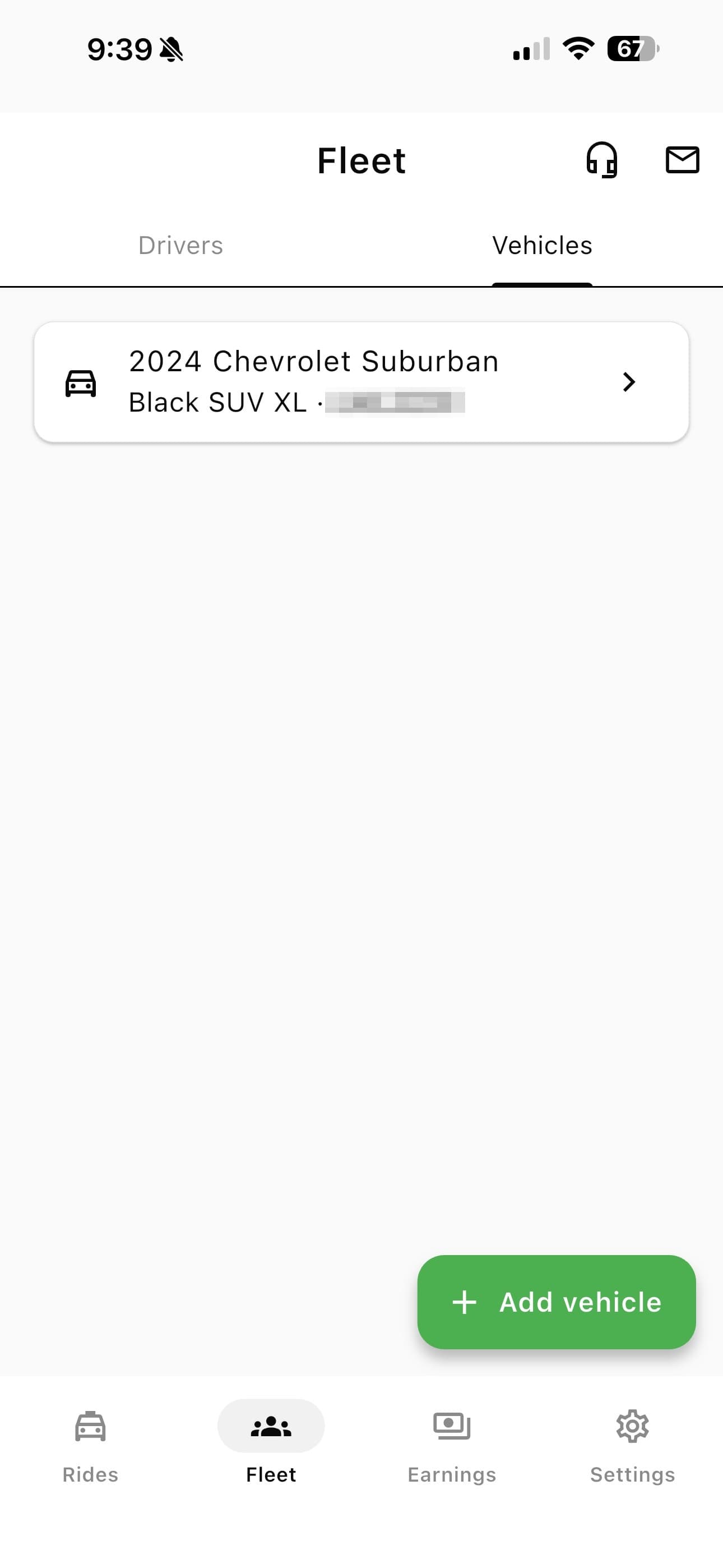
- 1Tap any vehicle to open it — that's where its documents live, and where you edit or remove it.
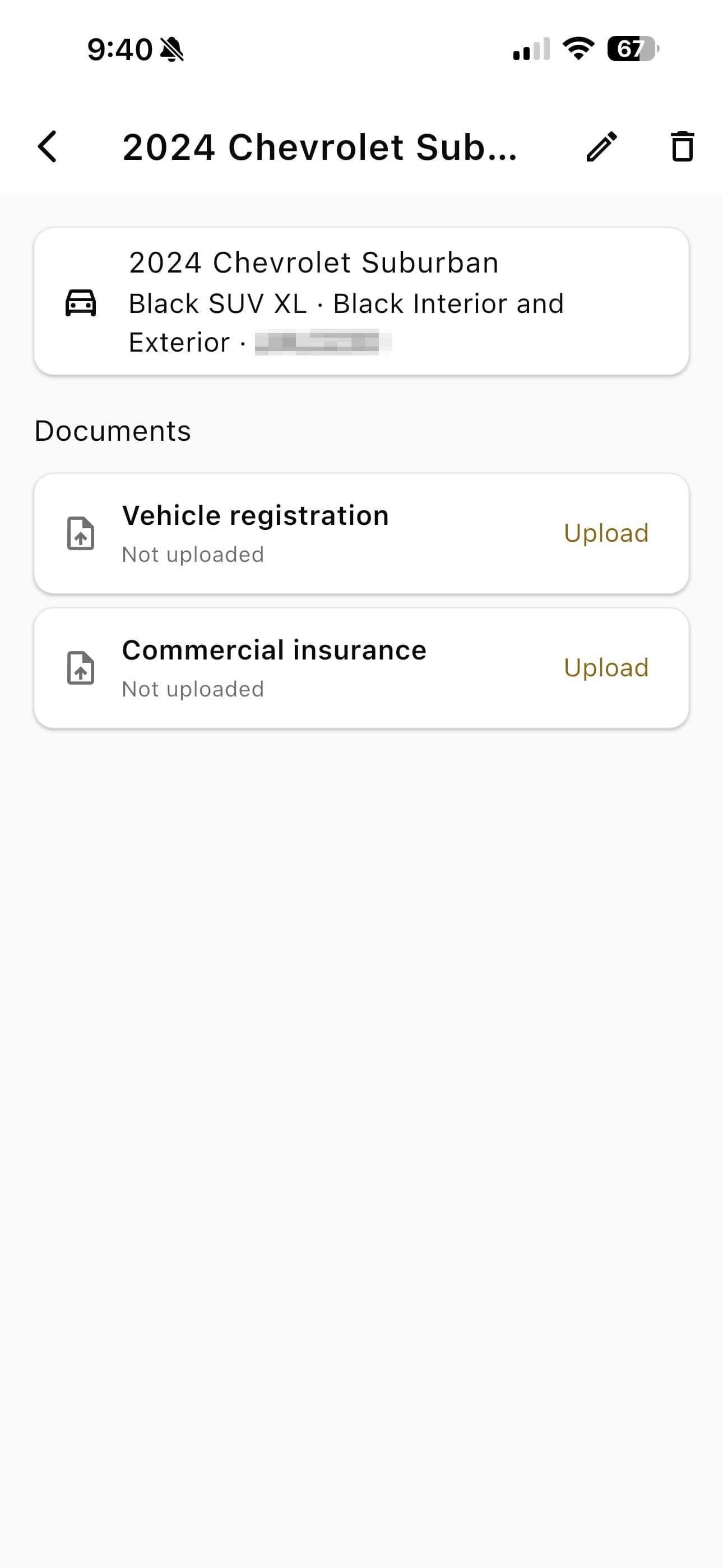
- 1Vehicle registration — required. Until this is approved the vehicle can't be driven, so it's the one that holds your fleet up.
- 2Commercial insurance — it must cover carrying passengers for hire. A business-use policy looks identical on paper and does not qualify; check the use class on the declarations page.
You don't upload your drivers' licences
This screen is for the vehicle's papers — registration and insurance — and those are yours to provide, because the company owns the car.
A driver's licence and profile photo are theirs. They add those themselves in the Blexor Driver app, under their own account, and there is no way for you to do it for them.
Only once a driver has completed their own setup can you assign them a vehicle. Until then they sit on your roster marked as still getting ready — so you can see who to chase, and what for, without waiting until a trip needs covering.
- ·Invitation sent — you've invited them, they haven't accepted yet. Resend or copy the link if it's been a while.
- ·Account created — they've joined but haven't uploaded anything. This is the one worth a nudge — most drivers who stall, stall here.
- ·Documents pending — they've started. Either we're still reviewing, or something's missing — the line under their name says which.
- ·Active — licence approved, photo added. You can assign them a vehicle and give them work.
Adding drivers.
Drivers join your roster by invitation, not by being added. A driver's Blexor account is their own — joining a fleet changes which vehicle they drive and where their earnings go, so it needs their agreement.
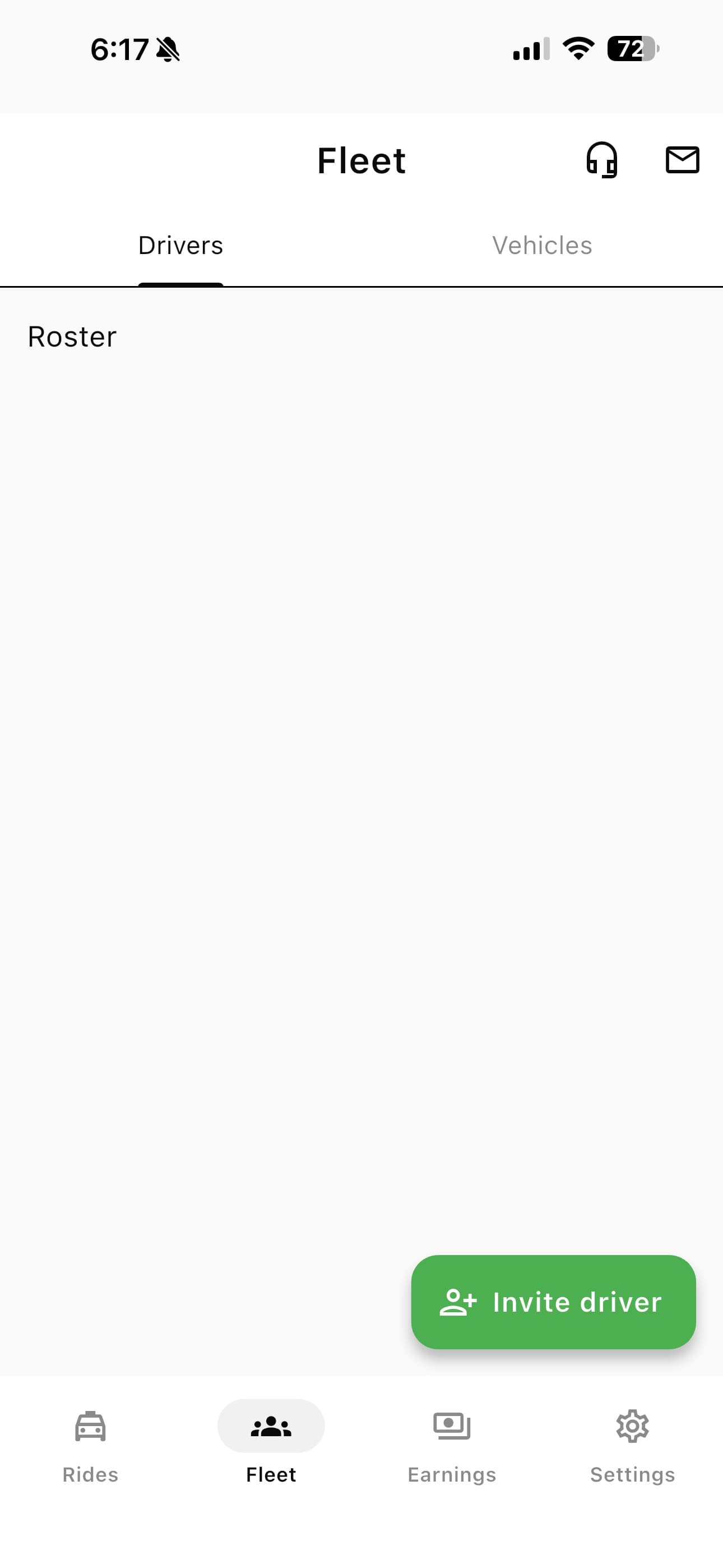
- 1Open the Fleet tab, then the Drivers sub-tab. Your roster lives here.
- 2Tap Invite driver — the green button at the bottom right. This is the add-driver button; there isn't a separate one.
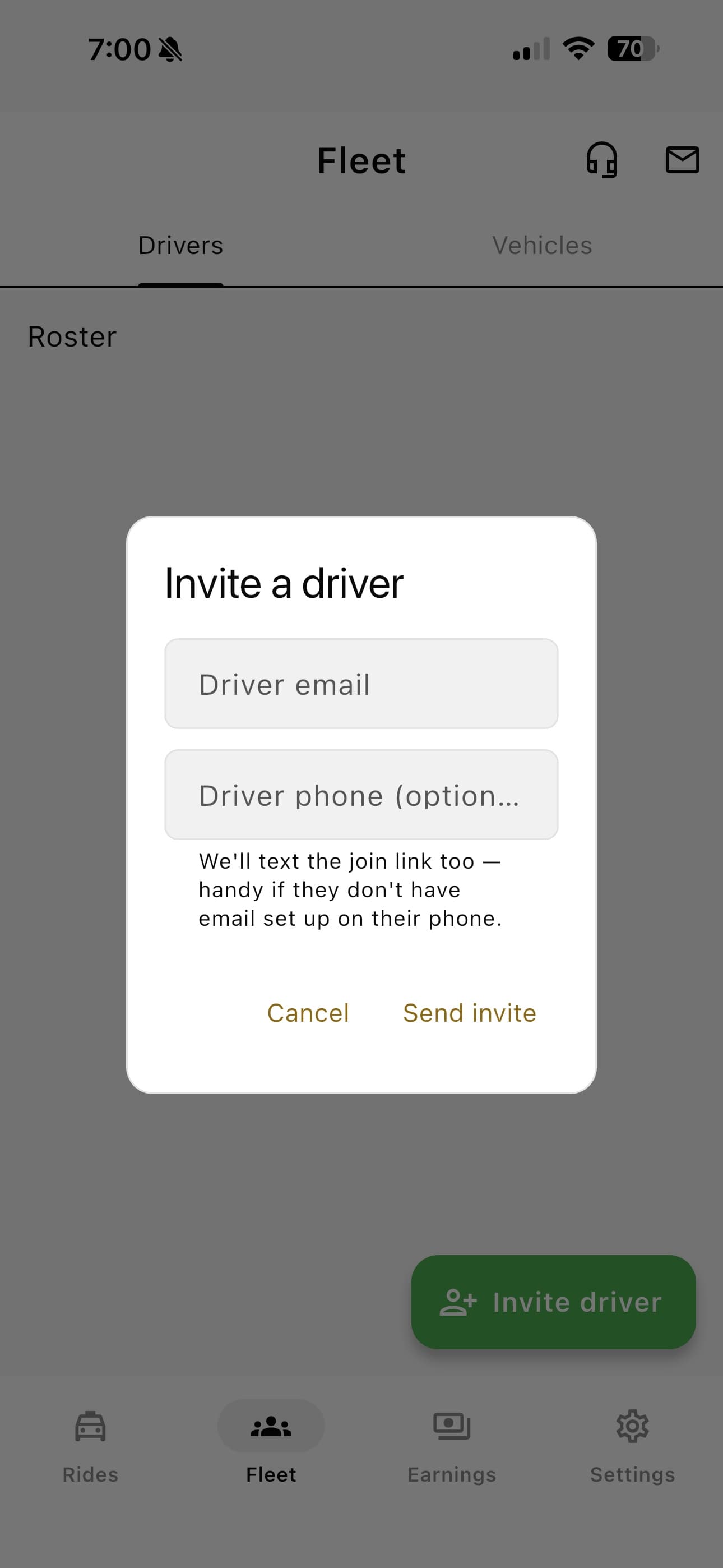
- 1Their email address — that's the only detail you need. You don't set up an account for them; they create their own.
- 2Their mobile is optional. Add it and we text them the join link as well, which helps if they don't have email set up on their phone.
- 3Tap Send invite. They appear under Pending invites until they accept — and if the email never lands, tap that invite to copy the link and send it another way.
A driver also needs to be approved to operate in a state before they can go online. We set that from their vehicle registration during review — so a newly joined driver may sit on your roster for a short while before they can take work.
How work reaches you.
Fleets work on scheduled trips — rides a passenger books in advance and opens to bidding. On-demand requests go to individual drivers; companies compete for planned work, which is the part of the market you can actually staff and route.
You bid, then allocate
The default. You place a bid for the company against a vehicle, without naming a driver. If you win, you allocate someone from your roster before the pickup.
Your drivers bid
Roster drivers bid directly on the company's behalf using a company vehicle. Whoever wins drives it, so there's no allocation step. Switch it on yourself in Settings → Payouts.
What to know about bidding
- ·Bid what you want to receive. Our fee is added on top for the rider, not taken out of your number — a $100 bid pays out $100.
- ·Bidding closes 25 minutes before pickup — often days after the trip is posted, so there's usually no rush to be first.
- ·A rider can accept at any time. There's no waiting period, so a strong early bid can win outright. Accepting one bid declines the others.
- ·You can go as low as 60% of the suggested fare. There's no ceiling, but riders see every bid alongside yours.
Getting paid.
Riders pay by card in the app — your drivers never handle money. After each completed trip we take our fee and route the rest one of three ways. You choose which in Settings → Payouts.
Pay the company
The whole net goes to your company's payout account. You settle with your drivers yourself, outside Blexor. This is the default.
Pay the driver
The net goes straight to the driver who did the trip, into their own payout account. Your company doesn't need a payout account in this mode.
Revenue share
The net is split automatically — your company keeps a percentage you set, the driver receives the rest. Both sides get paid without you moving money.
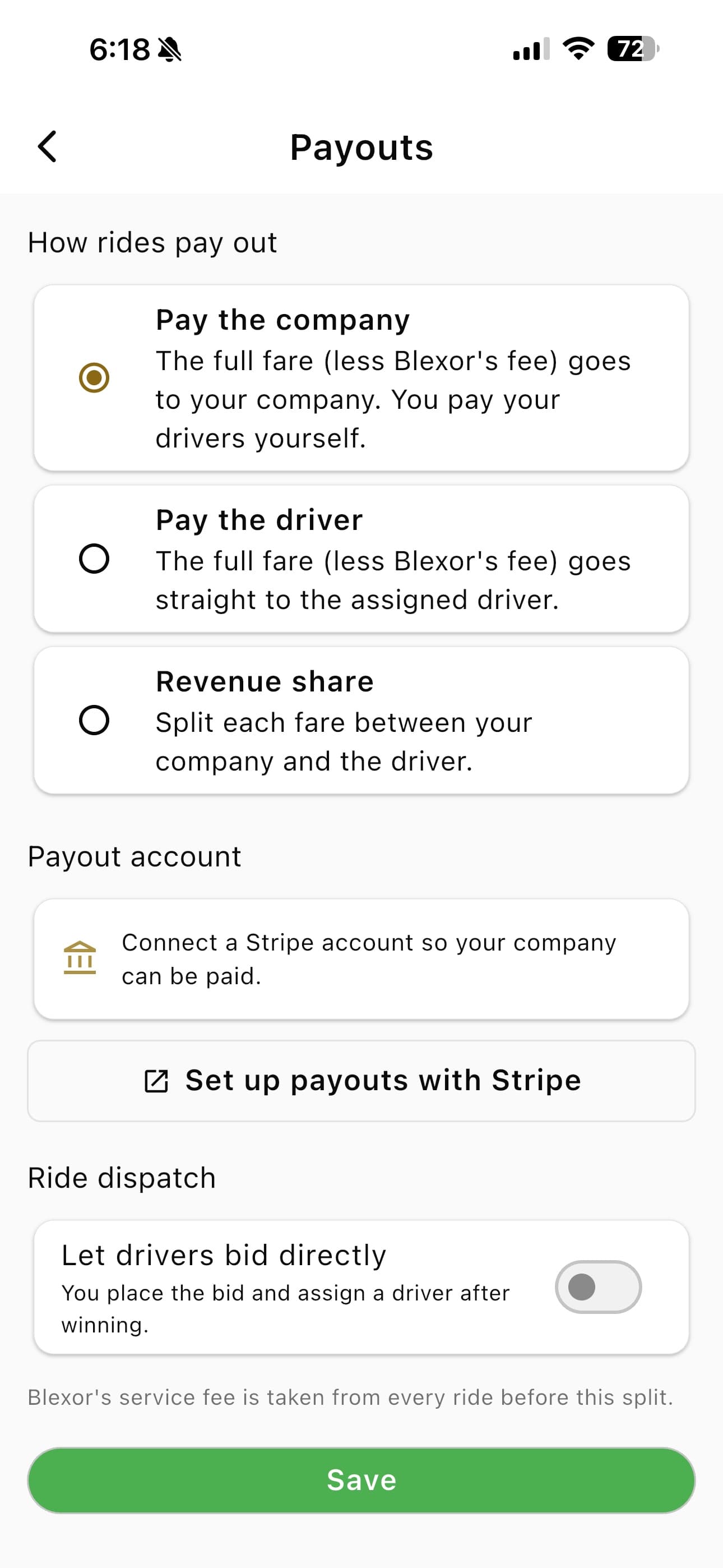
- 1Pay the company — the default. The fare, less our fee, goes to your company.
- 2Pay the driver — it goes straight to whoever drove, into their own account.
- 3Revenue share — split automatically between the company and the driver.
- 4Underneath, your payout account. This line tells you where you stand: not connected yet, more information needed, or payouts active.
- 5This opens Stripe to set the account up, and becomes “Manage payout account” once you're live.
- 6The same screen carries the dispatch switch. Off, you bid and then assign a driver; on, your roster drivers bid directly.
Setting up your payout account
Tap Set up payouts with Stripe and Stripe takes over — business details, ownership, and the bank account you want paying. It happens on Stripe's own pages, so your bank details never touch Blexor. Tax forms live there too.
- ·“More information needed” means Stripe has asked for something else — usually an ID document or a detail about the business. Tap through and finish it; the trips already booked aren't affected.
- ·You don't have to finish this before you start working. Money earned while setup is incomplete is held for you and released automatically the moment payouts go active — nothing is lost, it just waits.
- ·Paying drivers directly? You can skip it. In that mode the company is never the payee, so there is nothing for us to pay into — each driver connects their own account instead.
Once the line reads Payouts active, the button turns into Manage payout account— that's where you change the bank account later.
Payouts run through Stripe. Whoever is being paid — your company or the driver — completes a short Stripe onboarding once before money can move. See pricing for the fee.
Common questions.
I don't see an “Add driver” button — only “Invite driver”.
+
I don't see an “Add driver” button — only “Invite driver”.
+“Invite driver” is the button. There is no direct add, and that's deliberate: a driver's Blexor account belongs to them, not to your fleet. Joining your roster changes which vehicle they drive and where their earnings are routed, so they have to accept it. Tap Invite driver, enter their email (and optionally their mobile), and they'll get a join link.
My driver never got the invite.
+
My driver never got the invite.
+Go to Fleet → Drivers and find them under Pending invites, then copy the invite link and send it however you normally reach them — Messages, WhatsApp, anything. Adding their mobile number when you send the invite also texts them the link, which helps if they don't have email set up on their phone.
I don't see an Invite driver button at all.
+
I don't see an Invite driver button at all.
+That button only appears once your company is approved. If it's missing, your fleet is still pending review. If it has been pending for more than a few days, email [email protected] and we'll check — occasionally an application needs something we haven't asked you for yet.
I invited someone who already drives on Blexor, and they can't accept.
+
I invited someone who already drives on Blexor, and they can't accept.
+Accepting an invite currently creates a new account, so a driver who already has one will be told their email is already registered. Ask them not to make a second account — email [email protected] with their name and your company, and we'll link them to your roster.
My driver joined but can't go online.
+
My driver joined but can't go online.
+Each driver is approved to operate in one specific state, assigned by us from their vehicle registration. Until that's set they can't go online anywhere, and outside that state the app will tell them so. They also need their own licence approved and a profile photo on their account — the photo is required everywhere and is the one people forget. If a driver is stuck with everything uploaded, email [email protected] with their name.
Why can't I pick one of my drivers when assigning a trip?
+
Why can't I pick one of my drivers when assigning a trip?
+Only drivers marked Active can be assigned — anyone still finishing their setup is greyed out with the reason on the row. It's always something only they can do in their own account: an approved licence and a profile photo. Their status shows on your roster from the moment they join, so you can chase it early rather than on the morning of a trip.
Why can't I edit a vehicle's details any more?
+
Why can't I edit a vehicle's details any more?
+Once a vehicle's documents are approved, the make, model, year and plate lock — they have to keep matching the approved registration. If a detail is genuinely wrong, contact us and we'll reopen it.
How much do I bid?
+
How much do I bid?
+Bid what you want your company to receive. Blexor's fee is added on top for the rider rather than taken out of your number, so a $100 bid pays out $100. You can bid as low as 60% of the suggested fare; there's no upper limit, but riders can see every bid.
When does bidding close?
+
When does bidding close?
+25 minutes before the pickup time. Riders can accept a bid at any point before that — there's no waiting period and no minimum number of bids — so a good bid placed early can win immediately. Accepting one bid automatically declines the rest.
Do I get instant ride requests like a solo driver?
+
Do I get instant ride requests like a solo driver?
+No. Companies bid on scheduled trips, which are booked in advance. Instant, on-demand requests go to individual drivers. Your roster drivers can still take instant work in their own right when they're online.
Can my drivers bid themselves instead of me?
+
Can my drivers bid themselves instead of me?
+Yes. By default the owner places company bids and then allocates a driver after winning. Turn on “Let drivers bid directly” in Settings → Payouts and your roster drivers bid themselves — whoever wins drives, with no allocation step.
Can I drive myself?
+
Can I drive myself?
+Yes — the fleet owner appears on the roster and can be allocated to trips like any other driver.
Sending this to a driver?
There's a guide written for them — how to accept your invite, what documents we need, and how they get paid. Send them this link along with the invite:
getblexor.com/help/driver
Open the driver guideStill stuck?
Fleet owners have support chat built into the Blexor Driver app — it reaches us with your company already identified, which is faster than email. Otherwise write to [email protected].